Error in Active Directory Operations when Joining ESXi 6 to Active Directory
Hi
Recently when I was testing the ESXi 6 on my LAB running on VMware Workstation 11 I faced a nightmare when I tried to join the ESXi to the Active Directory.

As I started troubleshooting I re-assured all the prerequisites are met (such as NTP, DNS resolution) but the problem was haunting me.
As per the VMware guidelines when I tried to restart the lwsmd service via Tech Support Mode it was throwing the below errors
– lwsmd is not fully started
– likewise service manager [failed to set memory reservation] esxi
Then it clicked on me that may be this behaviour could be due to insufficient memory and after increasing the memory voila everything turned out to be working normally.
How to restore Active Directory Users with Active Directory Recycle bin
Dear Folks
I would strongly recommend to enable this feature to ease up the administration, further If you have deployed Exchange in your environment and if you want to recover a deleted mailbox the AD Recycle bin becomes handy because when you delete the Mailbox on Exchange 2013 it will delete the related AD User Account as well.
In order to restore you could simply restore the AD user account which will restore the Mailbox.
Notes to be remembered
– This setting is irreversible
– A Deleted object stays their for 180 days by default(In case if this does not your business practice please refer http://blogs.technet.com/b/askds/archive/2009/08/27/the-ad-recycle-bin-understanding-implementing-best-practices-and-troubleshooting.aspx)
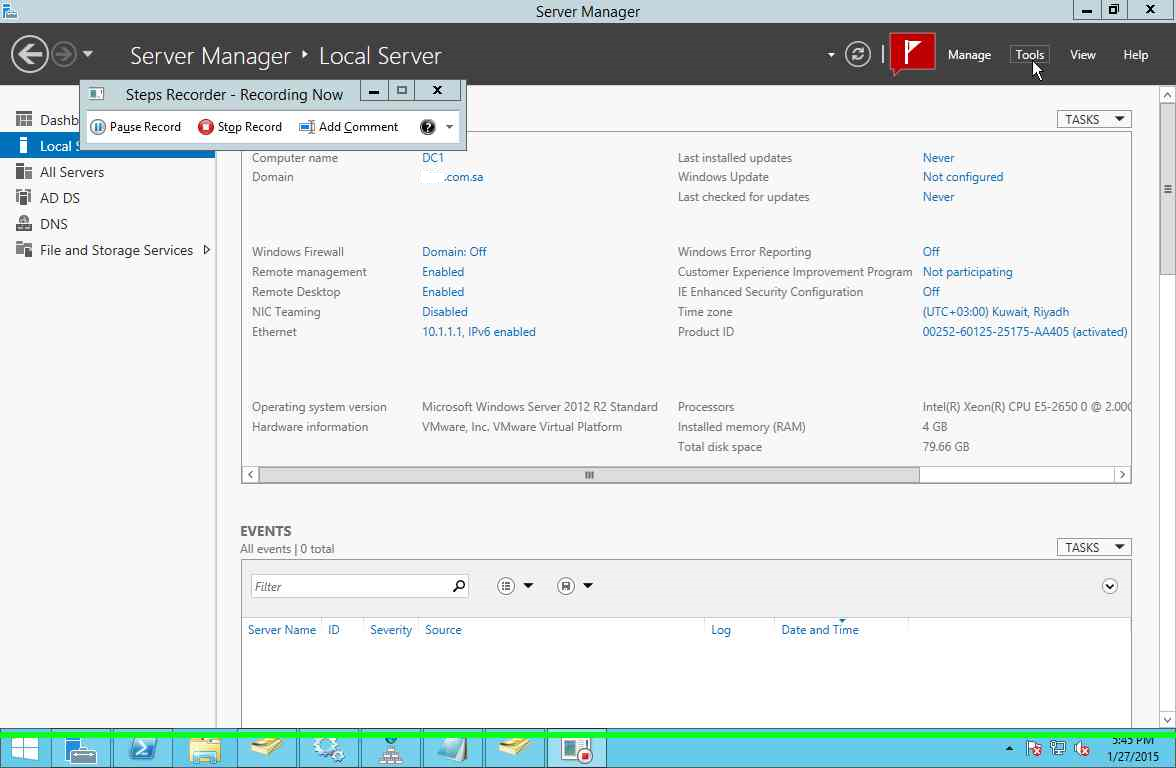
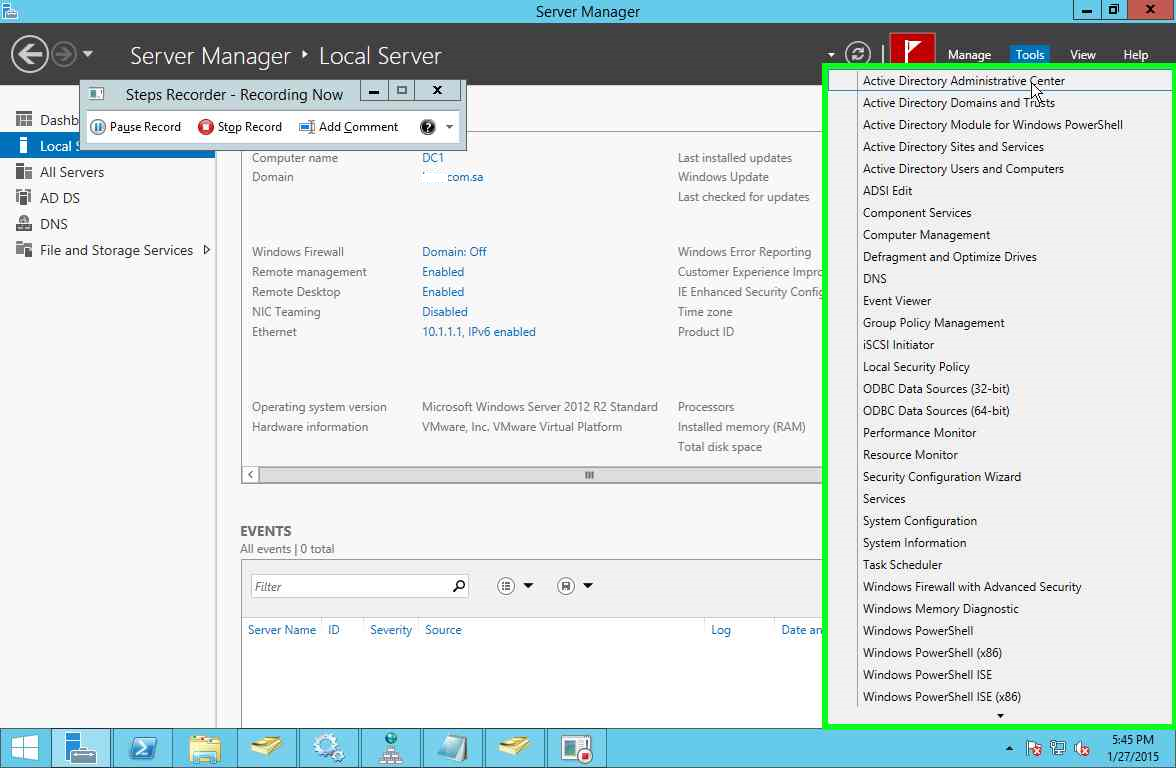


Once the above is done you could access the ADAC select your domain name then you will find the Deleted Object whereas you could select the user account and select the Restore Option on the Actions pane.
How to perform a Local Mailbox Move Request on Exchange 2013
Dears
I have prepared the below screen cast to guide you through the steps of moving an Active Mailbox.
1) Create a new Move Request via Exchange Shell (Orange2 Mailbox has been moved to MailDB1 Database)

2) Initialize or Start the Move Request

3) Check the Status of the Request.

How to create Exchange 2013 DAG and Test DAG Failover
Dear Folks
Today I decided to write a post explaining Exchange 2013 DAG Switchover/Switchback and Failover/Failback because I could not find a proper or an consolidated article in the Internet which explains the required steps to install and test the DAG.
This article will be divided in to 3 sections
Step 1 – Installation of Exchange Prerequisites and Exchange Installation
Step 2 – DAG creation
Step 3 – Testing (Switchover/Switchback and Failover/Failback)
Environment
1 DC (Windows 2012 R2 OS, Domain: Test.local)
2 Exchange Servers(Windows 2012 R2 OS, Exchange 2013 CU6)
Step 1 – Installation of Exchange Prerequisites and Exchange Installation
In this series we will walk you through the process of performing a clean installation of Exchange 2013 in single server.(Windows OS installation will not be covered)
> Begin with Installing the AD DS and AD LDS Roles to prepare the AD forest for the Exchange 2013 deployment.

> Thereafter open an elevated command prompt run the prepare schema command
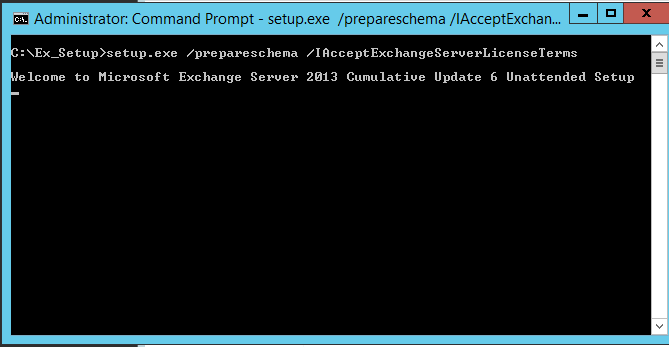
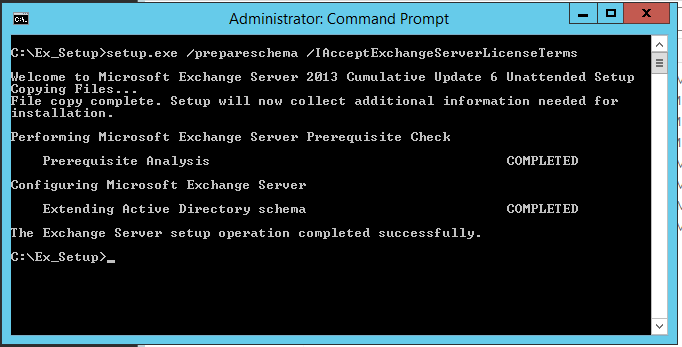
> Then start with the AD Preparation in this you need to mention the Exchange Server Organization Name

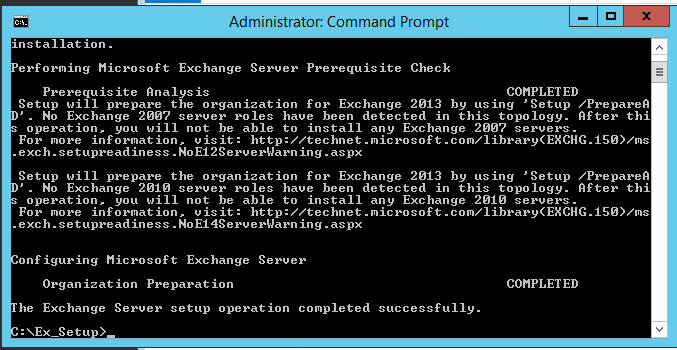
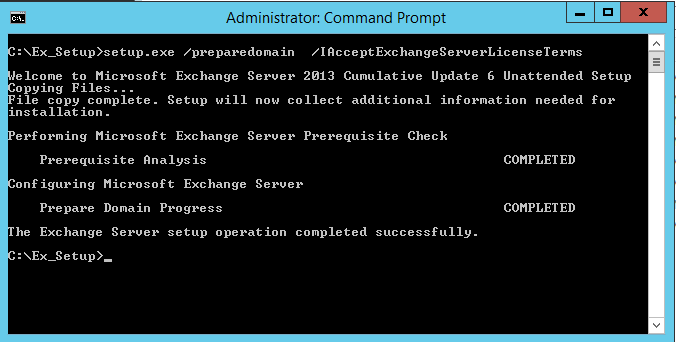
> Now you could prepare the domain.

> We need to install the below prerequisite based on exchange roles that will be installed since my deployment is single server role (cas and mbox together)
Install-WindowsFeature AS-HTTP-Activation, Desktop-Experience, NET-Framework-45-Features, RPC-over-HTTP-proxy, RSAT-Clustering, RSAT-Clustering-CmdInterface, Web-Mgmt-Console, WAS-Process-Model, Web-Asp-Net45, Web-Basic-Auth, Web-Client-Auth, Web-Digest-Auth, Web-Dir-Browsing, Web-Dyn-Compression, Web-Http-Errors, Web-Http-Logging, Web-Http-Redirect, Web-Http-Tracing, Web-ISAPI-Ext, Web-ISAPI-Filter, Web-Lgcy-Mgmt-Console, Web-Metabase, Web-Mgmt-Console, Web-Mgmt-Service, Web-Net-Ext45, Web-Request-Monitor, Web-Server, Web-Stat-Compression, Web-Static-Content, Web-Windows-Auth, Web-WMI, Windows-Identity-Foundation ( For other roles please refer Technet Article http://technet.microsoft.com/en-us/library/bb691354%28v=exchg.150%29.aspx )


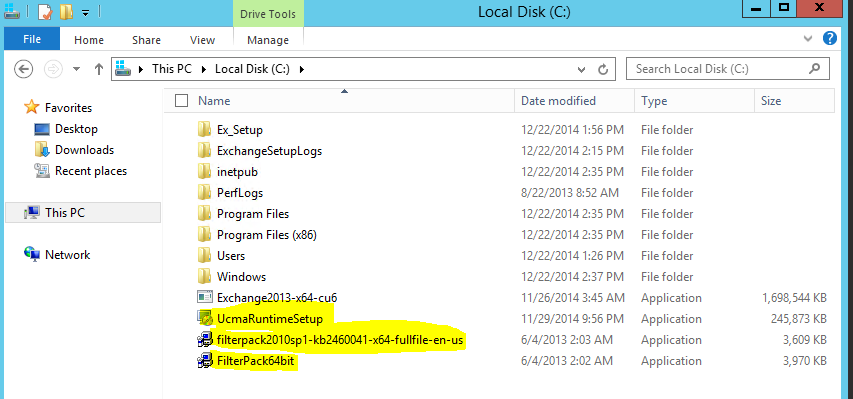
> Next we install the below mentioned components in the mentioned order as
1.Net Framework 4.5.2 (Only for CU7 , In case CU6 the required .NET Framework is pre installed)
2.Microsoft Unified Communication Managed API 4.0,Core Runtime 64-bit
> Finally begin the Exchange Installation by running setup.exe and follow the screen (selected option may vary based on your environment requirements) below are some of the customized options as per my LAB


Step 2 – DAG creation
Now we have installed the Exchange Servers. We will begin with the DAG creation.
> As a prerequisite the Exchange Installation or the Database and Log location should not to be identical in my case it was not
hence I need to move the Database and Log Files.

> Thereafter we need to pre create the CNO (Cluster Name Object) when we deploy DAG on Windows 2012 or Windows 2012 R2
1) Create a new computer object via Active Directory Users and Computer Snap-in

2) Disable the Computer Account created above and Press ” Yes” on the Prompt.

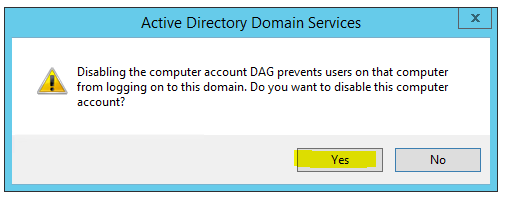
3) Enable “Advanced Features”
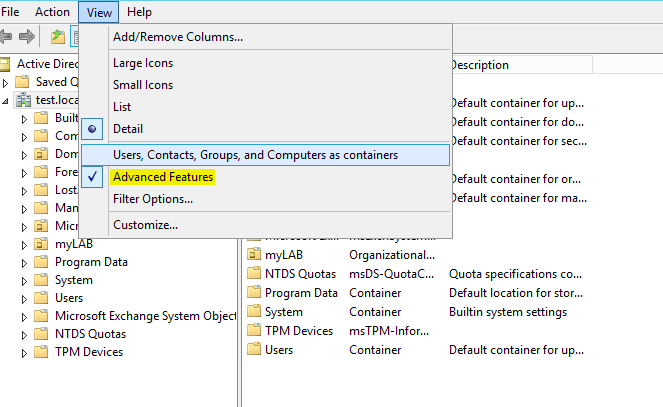
4) Right Click the Computer Object Created and add one of the Exchange Mailbox server and grant Full control

5) Add the File Witness Server in my case the Domain Controller in Exchange Trusted Sub System Group

6) Add the Exchange Trust Subsystem group on the Local Administrator Group of the File Witness Server.

Everything is done now we will begin with the DAG creation
7) We will create a DAG with the below parameteres
DAG Name : – DAG
IP Address :- 192.168.252.131
FSW Server : dc.test.local

NOTE:- I forgot the step 6 in my LAB and the FSW was not created , hence I need to re set the FSW property on my DAG after completing the Step6

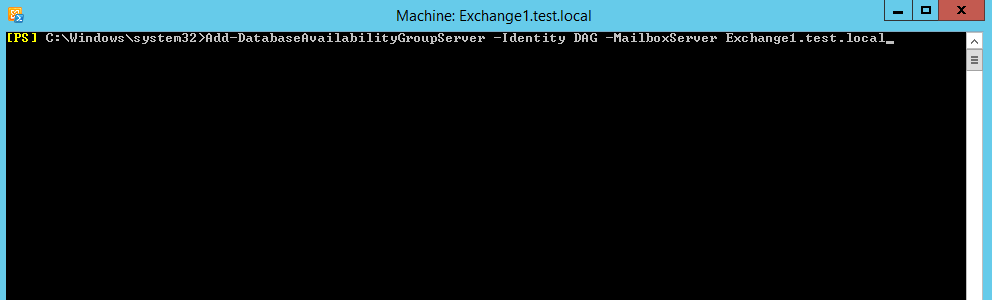
8) Add the Mailbox Servers to the DAG.
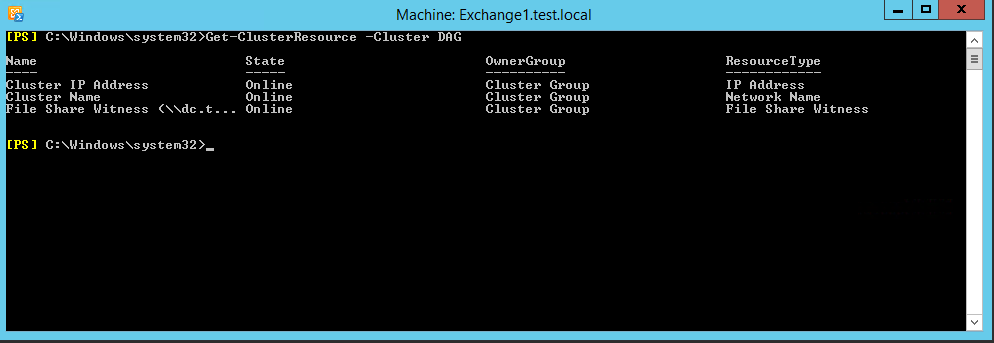
9) Verify the Cluster Resource to confirm whether the above commands are executed correctly and the required cluster resources has been created.
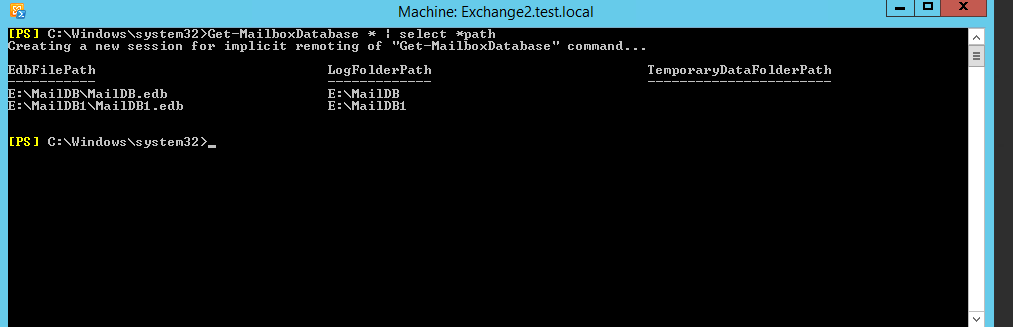
10) Now we are going to make the Database Copies ,hence check the Database and Log Path on the Exchange Server.
11) Add the First Copy

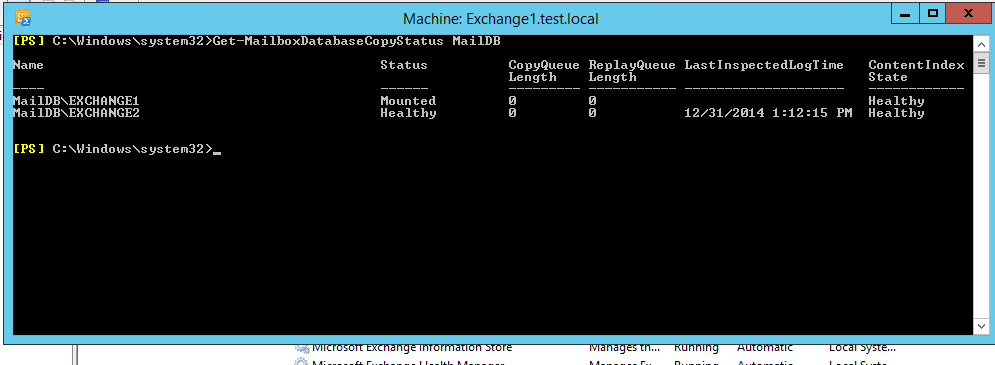
12) Verify the Database Copy Status and repeat the steps for the other databases.
(If you notice any status other the Healthy you could give some time or simply restart the Information Store Service.)
Step 3 – Testing (Switchover/Switchback and Failover/Failback)
1) Now we have successfully created the DAG we will go through the testing .( While testing I prefer if you could open an E-Mail Client to test the email flow between 2 accounts)
We will perform a database switchover which is a planned activity and can be done via ECP , Hence login to ECP –> Servers –> Databases
Select the passive copy of the database on the Exchange2 server and click on activate it.

Test the e-mail flow .
2) Now we will test the automatic service recovery a beautiful feature of DAG.
In the below snapshot we will stop the IISAdmin service and confirm that Exchange will restart the service automatically

3) Now we will perform a Failover which is an unplanned activity,In order to do this we will crash or stop the process Microsoft.Exchange.Store.Worker
on theExchange2 Server
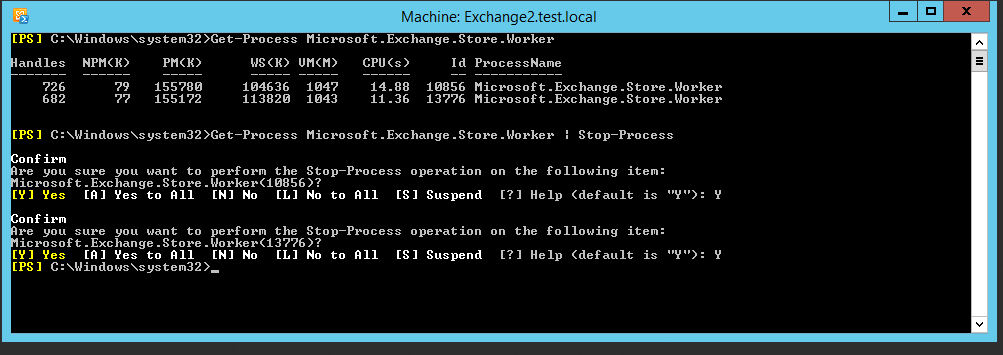
Once it done you will notice on the ECP that the Passive Database is activated automatically on the Exchange1 Server and now you could test the e-mail flow.

Done.
Exchange 2013 GRT Fails with Symantec Backup Exec 2014 SP1
Dear Folks
Recently we deployed Symantec Backup Exec 2014 V-Ray Edition and as per the Guidelines we installed the Agent on Exchange Server(Single Server) and configured all the prerequisites as below;
1) Add the BackupExec User to the below groups
-
Public Folder Management
-
Recipient Management
- Server Management
2) Enter the below commands in Powershell
new-RoleGroup -Name BackupExecRoles -Roles @(“Database Copies”, “Databases”, “Exchange Servers”, “Monitoring”, “Mail Recipient Creation”, “Mail Recipients”, “Recipient Policies”, “Mail Enabled Public Folders”, “Public Folders”)
Add-RoleGroupMember -Identity BackupExecRoles -Member BackupExecUser
3) This is for GRT
New-ManagementRole -Name “SymantecEWSImpersonationRole” -Parent ApplicationImpersonation
New-ManagementRoleAssignment -Role “SymantecEWSImpersonationRole” -User BackupExecUser -Name “BackupExecUser-EWSImpersonation”
New-ThrottlingPolicy -Name “SymantecEWSRestoreThrottlingPolicy” -EwsCutoffBalance Unlimited -EwsMaxBurst Unlimited -EwsMaxConcurrency Unlimited -ExchangeMaxCmdlets Unlimited -MessageRateLimit Unlimited -PowershellCutoffbalance Unlimited -PowershellMaxBurst Unlimited -PowershellMaxCmdlets Unlimited -PowershellMaxConcurrency Unlimited -PowershellMaxOperations Unlimited -RecipientRateLimit Unlimited -ThrottlingPolicyScope Regular
Set-Mailbox -Identity BackupExecUser -ThrottlingPolicy “SymantecEWSRestoreThrottlingPolicy
Set-ThrottlingPolicyAssociation -Identity BackupExecUser -ThrottlingPolicy “SymantecEWSRestoreThrottlingPolicy”
4) Test EWS Connectivity for the BackupExec User
test-webservicesconnectivity -MailboxCredential $(get-credential) -TrustAnySSLCertificate | FL
It will produce a logon prompt, enter the backup exec user credentials it will output some html tags without an error.You may face an error in the Powershell in Exchange 2013 and you need to run the command shown in the output and enter a password , thereafter if you run the original command it will not reproduce the error.
After all the above steps you may face the below error during the restore
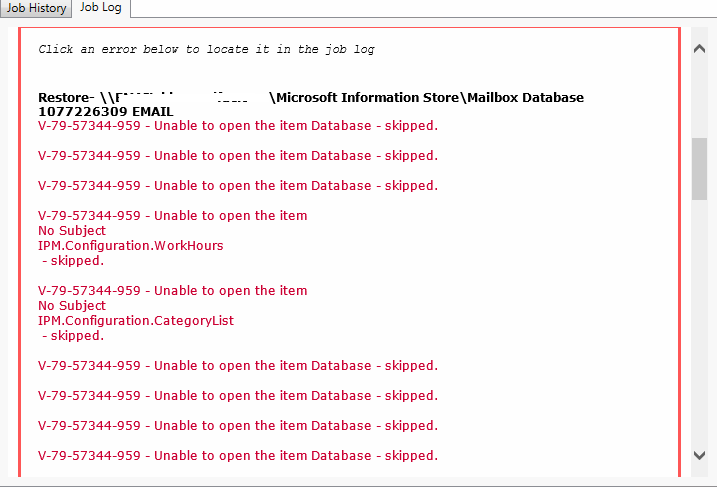
Assuming if you have done all the prerequisites correctly , you must try the below
1) Restart both the Backup Exec and the Exchange Server
2) Reconfigure the Backup Exec Job credential for the Exchange Server as below (This worked for us)
Domain Name\BackupExec User
Good Luck !!!
ESXi 5.5 Update Manager hangs at 33%
Dear Folks
Recently I have been deploying an ESXi Cluster based on 5.5 ,when we configured the Update Manager and tried to scan the Hosts the process hangs at 33%.
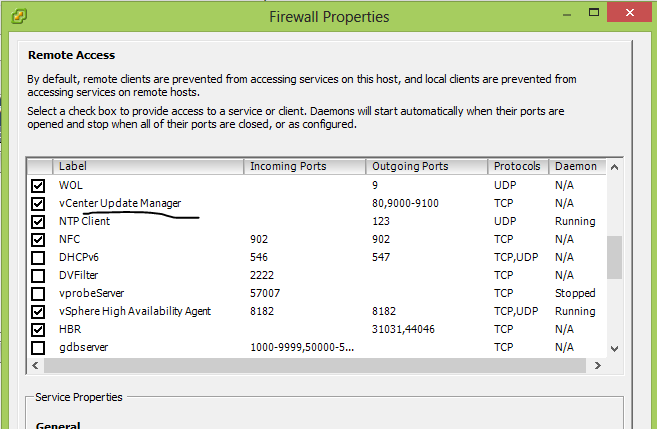
We solved this issue by adding the “Vsphere Update Manager” on the Security Profile.
Steps
> Login to Vsphere Client
> Select the ESXi Host and Click on Configuration
> Select Security Profile
> Select the Firewall and click on Properties
> Click on Vsphere Update Manager to make it selected.
Press OK.
Time Sync Issue on Virtualized Domain Controllers VM on Hyper-V and VMware
Dear Folks
Recently we noticed that our Domain Controller(VM) was throwing the Wrong time and forcing all the other servers and the client pc’s the wrong time.
Hence we started digging the problem by initially finding the source for our Domain Controller Clock it was found out by using the below command
w32tm /query status
Source: VM IC Time Synchronization Provider
This means the source is the Hyper-V Guest Integration Time Service.and in turn our Hyper-V server was having the wrong time.
Therefore what we did is we disabled the “Hyper-V Time Synchronization Service” via services. thereafter we ran the command mentioned above and the source became
Source: Local CMOS Clock
Then we set the local clock on DC to the correct time and noticed that all our servers and client started taking the time from the Domain Controller correctly.
So as a practice I would advice to do the same when your DC is sittings as a VM on any Hypervisor to avoid time sync issues.
Update:1
As per the new recommendation Microsoft is saying to keep the Time Synchronization service enabled and make the below registry entry on the virtualized PDC emulator
reg add HKLM\SYSTEM\CurrentControlSet\Services\W32Time\TimeProviders\VMICTimeProvider /v Enabled /t reg_dword /d 0
and add an external source.
Update:2
On the PDC Emulator role server type the below command to check the communication between the NTP server.
w32tm /stripchart /computer:<target> /samples:<n> /dataonly
Then if it is working fine change the NTP as below;
w32tm /config /manualpeerlist:<peers> /syncfromflags:manual /reliable:yes /update
VMware
As per the VMware recommendation
– Keep the VM Tools Time Synchronization Disabled (By Default)
– Configure the ESXi host to use an external time source(Router / Switch / Public Server)
– Configure the PDC emulator for the external time source same as ESXi Host.
I would like to mention the few commands below which will be useful when dealing NTP issues on Windows;
To Stop/Start NTP
—————–
net stop w32time
net start w32time
To Remove and Install the service
———————————-
w32tm /unregister
w32tm /register
To Configure the PDC to use an external source:
———————————————–
w32tm /config /maunalpeerlist:”fortigate.test.com.sa” /syncfromflags:manual /reliable:yes /update
To Query the status
——————-
w32tm /query /status
w32tm /query /configuration (The output must shows the Type as NTP instead of NTDS5)
To force the time
—————–
w32tm /resync /rediscover
w32tm /config /update
To find the configuration
————————-
w32tm /query /configuration
To check the locaol NTP source
—————————–
w32tm /query /source
To manually check the time source
———————————
w32tm /stripchart /computer:fortigate.test.com.sa /samples:5 /dataonly
To force the member server to sync with the domain controllers available in the domain
w32tm /config /syncfromflags:domhier /update (If the NTP service is disabled make it to manual mode).Inaccessible boot device on Windows 2012 with EMC Networker
Hi
I would like to share my experience related to the above error.
Recently we received a call from our customer saying that 2 VM’s were not booting. We were in panic mode as these 2 servers are the domain controllers and the backup software which was supposed to do the BMR also failing.
Thereafter when we contacted Microsoft Support the team identified the error is due to the “nsrbbwi” key which being added on the Registry by our EMC Networker Backup Tool and once it was removed the servers booted normally.
Go to the below Registry via the Command Prompt from the System Recovery Options
ControlSet001\Control\Class\{533C5B84-EC70-11D2-9505-00C04F79DEAF}
ControlSet001\Control\Class\{71A27CDD-812A-11D0-BEC7-08002BE2092F
Remove the Value for “Upperfilters” as it will be pointed to “nsrbbwi”
Reboot the server.
Source:-
-Microsoft PSS
-https://blogs.technet.com/b/mrmlcgn/archive/2014/02/20/after-installing-upgrading-emc-networker-version-8-1-1-windows-fails-to-boot-stop-error-7b-quot-inaccessible-boot-device-quot.aspx
Best regards
How to identify the LUN id from Windows with MPIO installed
Dears
Recently as part of the migration process we need to remove the EMC Powerpath and Windows MPIO and customer was requesting a way to identify the LUN id via
Windows.
The easiest way to do this is
Download the EMC “inq” tool and place it on the server
(ftp://ftp.emc.com/pub/symm3000/inquiry/)
and run the tool as follows
– inq or you could add the switch as -clariion
This will list all the LUN for better readability I would suggest to run the command as follows
c:\inq -clariion > vol.text –> This will send the output of this command to the text file)
Open it you will see a column “CLUN” and this is the corresponding LUN id for your disk.
Good Luck.
How to migrate the Hyper-V CSV’s to a new Storage
Dear Folks
Recently we sold a VNX 5300 storage to our customer and his intention was to migrate the data from his old EMC AX4 5i Storage.
We proposed him the SAN based migration option but customer was resisting and we have to do it on the Windows level.
The Environment
2 Node Windows 2008 R2 Hyper-V Cluster CSV enabled.
Ax4 5i Storage
EMC Powerpath Free Edition installed on both hosts.
2 FC HBA
Steps Performed.
– Initialized the new storage
– Configured the new LUN’s
– Connected a new HBA’ (Because the server was having only single free PCIE slot)
– Assigned the LUN’s to both the server.
– Logged in to one of the server ( which was the current owner for the CSV)
– Added the LUN as disk via Storage from Failover Cluster Manager)
– Added as CSV (via Cluster Shared Volume from Failover Cluster Manager)
– Exported the Virtual Machine to the new location on the C:\ClusterVolume(Can be any name as per your environment)\NewFolder –>Which will point it to the new disk)
– Deleted the VM from the Hyper-V Manager
– Imported VM again from the new location via the Hyper-V Manager.(Do not change any options from the Import Wizard)
– Finally Changed the Quorrum drive to the new LUN on the Storage via Change Cluster Quorrum Settings from the Failover Cluster Manager)
– Removed the Old Storage
– Fixed the Additional HBA
– Removed EMC Powerpath
– Enabled MPIO
Voila everything went smooth as ice.
Hope this article is useful and incase if you need any additional information please do not hesitate to contact me.
 Hope you like it..