Posts filed under ‘Windows’
How to Disable IPV6 on Windows
Dear Folks
Some of us will encounter the below error message on a DNS server installed on Windows 2008 / 2012

But this is not a real problem ,and there will be no technical glitches based on this also Microsoft do not recommend disabling the IPV6 on Windows and Exchange servers.
Still if you want to hide this error you could do either of the below option
Option 1
1.identify the name of the LAN connection using ipconfig(in my LAB the name of the connection is “Local Area Connection”
2. netsh interface ipv6 delete dnsserver “Local Area Connection” ::1
Option2
1.netsh interface ipv6 show interfaces
2.netsh interface ipv6 delete dnsserver name=”IDX#” address=::1
NOTE:- Keep reading on IPV6 and Microsoft guidelines and discussion since these are getting updated frequently
Good Luck..
Active Directory Domain Servers could not transfer the remainig data in directory partiiton
Hi
Recently I faced an issue with one of our clients where he was unable to run the DCPromo to demote the server , he was getting the below error.
The server operating system was Windows 2008 R2.

After some research I found out that the reason is that the fsMORoleOwner attribute was pointing to an incorrect entry ,it may contain an entry such as “0ADEL:123456f8-1238-1233-1230-123456361b8b” But the actual FSMO role owner is dc1.test.local.
I was trying to change the attribute via ADSI Edit on the server which I need to demote , But again I was faced with the below error.
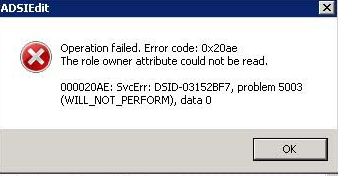
So if anybody faces a similar incident , they should do the below steps. by log in to the current domain controller which was holding the schema master role
* Identify the current FSMO Role Owner by
netdom /query fsmo
1 Login to the current owner , and open the ADSI Edit
2 Connect to the DC=ForestDnsZones,DC=test,DC=lab
3 Right click on CN=Infrastructure go to Properties
4 On CN=Infrastructure Properties click on fsMORoleOwner attribute and click on edit you will find an incorrect entry as below 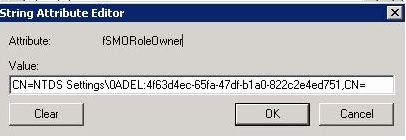
5 Clear the text and enter the below text.
CN=NTDS Settings,CN=dc,CN=Servers,CN=HeadOffice,CN=Sites,CN=Configuration,DC=test,DC=local.
After the above steps repeat the step2 to connect it to the DC=DomainDnsZones,DC=test,DC=lab and repeat the steps 3,4 & 5
Voila Press OK and close the ADSI Edit and now login to the server where you want to demote and run the DCPromo command and now you will be able to complete the wizard without any error
“I would like to thank “Antonie Khater” for his blog entry which was really helping me to focus in to the right direction”
Error code: 0x800F0906 while installing Microsoft .NET Framework 3.5
Hi Friends
Those who try to install .NET Framework through “Windows Feature” on Windows 8 or 2012 may receive the above mentioned error.
The quickest workaround for this issue ,
– Insert the Windows 8 or Windows 2012 Media
– Type the below command on the elevated Command Prompt.
Dism /online /enable-feature /featurename:NetFx3 /All /Source:<drive>:\sources\sxs /LimitAccess ( Replace the <drive> with your DVD Drive letter
Source:TechNet
Good Luck…
How to reinstall the failed Additional Domain Controller on Windows 2012
Hi Folks
Recently I faced an issue with a customer where we have installed a Windows 2012 Additional Domain Controller as a Virtual Machine on Hyper-v Server , he was getting the below error.

So I was trying with all the CHKDSK , Last Known Good Configuration , Directory Restore mode BUT everything failed, Including the below suggestion on Technet forums
Since I had to meet the SLA on solving the ticket , I decided to re-install the Additional Domain Controller on the same name ,which will avoid me of Cleaning the metadata and other complex task.
So I performed the follow steps.
- Re-installed the Windows 2012 Guest on Hyper-V
- Change the name to my previous Additional Domain Controller name.
- Open the Powershell
- Add-WindowsFeature AD-Domain-Services –> This will install the Active Directory Domain Services.
- Import-Module ADDSDeployment
- Install-ADDSDomainController -AllowDomainControllerReinstall -Credential (Get-Credential) -DomainName “test.local”This will prompt you to enter the credential , make sure you enter the credential either in DOMAINNAME\Administrator OR Administrator@DOMAINNAME
Secondly it will prompt you to enter the Directory Restore Password - That’s all it will promote the new server as a domain controller , you do not need to do anything on DNS or other related services.
- Finally you will need to install the ADDS Management Tools to Manage the Active Directory components you could do it via PowershellImport-Module ServerManager
Add-WindowsFeature RSAT-AD-PowerShell,RSAT-AD-Tools and hit enter
OR via the GUI

Voila… My problem was solved . Good luck Guys….
HTTP Error 500.22 – Internal Server Error An ASP.NET setting has been detected that does not apply in Integrated managed pipeline mode.
Hi Folks
When you are configuring a web site you may face the above error ,and it caused by a wrong pipeline mode which you can change it with the below steps
Source:- forums.iis.net
* Open IIS Manager
* Go to the Application Pools
* Select the required Application Pool -> Change the Manage Pipeline Mode to Classic as below

Once it done -> Right Click on the Application Pool –> Click Recycle.
Good Luck.
How to change the MTU Value in Windows
Due to some network related issues you may need to reset the MTU vaules in you systems.
* To Change the MTU Value
netsh interface ipv4 set subinterface “Local Area Connection” mtu=1300 store=persistent
Of course REBOOT needed.
* If do you what to verify this setting:
netsh int ip show int
 Hope you like it..