Posts tagged ‘windows 2022’
Windows server 2022 – Cannot extend C: partition
Those who are installing new Windows 2022 server , may realize that the C: drive cannot be extended . This is due to the recovery partition is created next to the C: drive.

Most of the google search references pointing out to use a 3rd party tool to modify the disk or delete the recovery partition via diskpart utility using the override switch and then extend the C: drive. However , This deletion will lead you to a situation you lose the recovery partition and unable to recover the server via the recovery media or similar methods. Thus I would recommend the below approach to safely transfer the recover partition to C: drive after deleting the original recovery partition.
Step1: Mount the Windows 2022 Image to the C:\Temp folder
DISM /Mount-image /imagefile:D:\sources\install.wim /Index:1 /MountDir:C:\temp/readonly /optimize
Step2: Transfer the recovery media to C: drive
robocopy /MIR C:\temp\Windows\System32\Recovery\ C:\Windows\System32\Recovery
Step3 : Set the recovery partition to C:\Windows\System32\Recovery
reagentc /setreimage /path C:\Windows\System32\Recovery
Step4: Unmount the Windows 2022 Image and verify the recovery partion status
Dism /Unmount-image /MountDir:C:\temp /discard
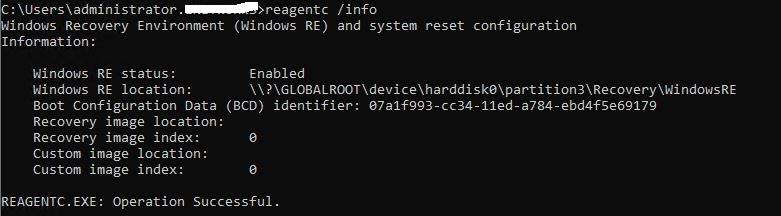
Run the command reagent /info to verify the Recovery partition Image
How to migrate a File Server to another server with the latest operating system.
In this article I am going to explain about a recent project that we took over to migrate a Windows 2003 File Server to Windows 2022 Server.
In the past , we use to perform these kind of migration via manual file transfer , or backup and restore methods. However , Microsoft has released a new feature call Storage Migration Service that could be enabled via Windows Admin Center Web Console(WADC). This tool can be installed in any of the machine or you can install it on the destination file server. The storage migration service will take care of the share and security permission on the destination file server as per the original settings.
After installing the WADC you need to enable the Storage Migration Service extension and reload the interface.
Thereafter , you can configure a migration job by mapping the source and destination file servers. The other benefit is that you can sync the differences to cover the delta or changes after the initial migration. During , the cutover (using the same wizard ) the source file server can be assigned with a different IP and the original IP can be assigned to the new server
For a detailed walk through of the procedure please refer the https://4sysops.com/archives/windows-server-2019-storage-migration-service/.
Good Luck.

 Hope you like it..