Posts tagged ‘migration’
How to offboard Exchange Online Mailboxes to Exchange On-Prem using Exchange Hybrid Environment
Recently , we had a project to offboard Exchange Online Mailboxes to On-Prem Exchange. In this environment customer already have Entra Connect Server. I would like to share the steps we followed during the project so it could be referred by anybody who is having a similar requirements.
However , I am not going to list out any commands here as it is freely available in many web sites.
- First we deployed Exchange On-Prem Server and completed all the configuration like DAG , Connector etc.
- Then we deployed the Exchange hybrid Configurations with Centralized Mail Transport.
- All the autodiscover,MX and other Exchange related DNS records were re-pointed to Exchange On-Prem Public IP’s.
- Created a TestMailbox in Exchange On-Prem and tested the email flow.
– Email sent to Exchange On-Prem Mailbox from Outside delivered successfully.
– Email sent to ExchangeOnline Mailbox from outside bounced back with an error user not found in the organization.
– Email tests sent from Exchange On-Prem to Exchange Online and vice versa failed. - After troubleshooting we found out the Exchange Online mailboxes were not visible on Exchange-On-Prem ECP. Further troubleshooting revealed that the AD user attribute for the AD synced users does not have Remote Routing Address.(e.g testdomain.mail.onmicrosoft.com)
- So we decided to do a bulk update of all the users to populate their Remote Routing Address.(You must do a Delta AD Sync after this process). Thereafter , we were able to see all the Exchange Online Mailboxes in the Exchange On-Prem ECP.
- Tested all the email scenarios and confirmed everything is working fine.
- The other obstacle we faced is that , when an email sent from Exchange Online Mailboxes to outside world the relaying was denied by the Exchange On-Prem server.Even though , we believed the default FrontEnd receive connector in Exchange On-Prem had all the requirement for this, we ended up creating a new Receive Connector and added all the Exchange Online IP’s to allow the email relay and resume the e-mail flow.
Hope it helps some one who is struggling to find a proper article for similar scenario. In case , if you want to reach out to me for detailed steps like commands used for bulk import/export/AD properties update , please feel free to reach out to me.
Cross Forest Migration from Exchange 2003 to Exchange 2016 using CodeTwo
Hi All
After a long pause I thought add a new post about a recent project that I worked with .The project was to perform a cross forest migration from Exchange 2003 to Exchange 2016 .We had to bypass the double hop migration ,thus we chose CodeTwo exchange migration to move directly from Exchange 2003 to Exchange 2016.
In this article I have include the steps (not detailed steps as it could be easily found via a simple Google search) which will guide you from Cross Forest Active Directory Migration to Exchange Migration.
NOTE: There was no inter forest mail flow during the migration as we decided to move all the mailboxes over the weekend.
Source Forest:
Windows(2003) , Exchange (2003), Multiple SMTP Domains configured on Exchange 2003
Target Forest:Windows 2012(R2),Exchange(2016), Multiple SMTP Domains configured as the Accepted Domains.
The migration task was broken in to several sequential steps.
1)User Migration (via ADMT)
2)Group Migration(via ADMT)
3)Workstation Migration (via ADMT)
4)Mailbox Migration(via CodeTwo)
Based on the above we started preparing the prerequisites for the steps 1-3(Exchange 2016 was already installed on the Target Domain).
– Raised the Forest Functional level and Domain Functional level to
2003 on the Source Domain Controllers.
– Created conditional forwarding on source and target DNS servers
for both domain names to be resolved vice versa.
– Created two way trust between the source and target forest.
– Created a group called ADMTAdmin(on source) and added the
Domain Admin(Target). Thereafter created a group policy for the
Restricted group and added the ADMT Admin Group(This is to
have local administrator rights on all source forest workstations).
– Created another group policy to disable Windows Firewall.
– Install SQL Express and .NET Framework on the Target DC prior to
installing the ADMT.
– Install Password Export Server on the source Domain Controller
(This is to import the same password).This will require the below
steps.
– Create PAC Key on Target *
(admt key /option:create /sourcedomain:ebyader.com
/keyfile:”c:\PES.pes” /keypassword:*)* (use this extracted key
when installing the PES Application)
– PES service should be run as using target admin account) *
– Finally Add the Administrator use to remote builtin Administrator
group vice versa on each forest..
Once the above are done you can start migrating the users,groups and workstations. The ADMT will prepare the workstations to work on the new domain but accessing the same profile.The Outlook profile still will be pointed to the old exchange server.(In order to avoid the password prompt you could grant Mailbox right for the target AD account to his/her mailbox).
Any issues related to ADMT and the required troubleshooting steps were collected from the website: https://blog.thesysadmins.co.uk/admt-series-1-preparing-active-directory.html
Issues faced at this stage.
Issue 1: Users get blank profile with out any data.
Solution:
Ask the user to log off from the user workstation.
– Run Regedit from your computer. Connect Network Registry to the user workstation.
– Go to HKEY_LOCAL_MACHINE\Software\Microsoft\Windows NT\CurrentVersion\ProfileList
– Go through the Profile list and identify the Source account. Copy the value from the ProfileImagePath key.
– Again go through the Profile list and identify the Target account. Paste the ProfileImagePath key value there.
– Restart the user workstation.
The ProfileImagePath key will be same value for both Source and Target user accounts. This ensures both source and target users will receive the same profile which is stored under C:\Documents and Settings\UserName.
Issue2: Outlook users will not be able to access their email as per attached error.
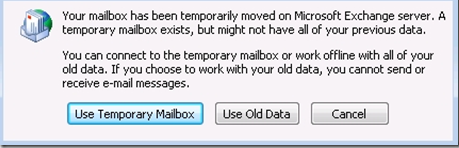
Solution: This is because the autodisover on Exchange 2016 will try to reconfigure the outlook. Thus you could set the autodiscover url to null, and remove the autodiscover DNS record created in the local DNS servers(Target).
Issue3: Failed to change domain affiliation, hr=800704f1 .
Solution: Enabled the Group Policy on the Target DC as
Default Domain Controller Policy-Computer Configuration-Policies-Admin Templates-System-Net Logon-Allow cryptography —NT 4.0
At this stage all the users ,groups and workstation were migrated to the new target forest but still accessing the old exchange mail flow.Thus we reached the climax of this project which is the exchange migration. we started preparing the prerequisites for Exchange Migration using CodeTwo
– Installed Windows 2012 R2 and joined to the Source domain.
– Login with the domain administrator account
– Install CodeTwo (please refer the user manual from CodeTwo , but
in my case I skipped all the prerequisites as I was not intended to
maintain any mail flow between two forests.
– Started Exchange Migration in batches and completed successfully.
– Informed the ISP to change the MX toward the new IP pointing to
Exchange 2016 server.
– Did a rescan (CodeTwo command to copy any missed or new
items from the source mailboxes to new mailboxes.
Issue Faced:When migrating with CodeTwo you will receive ErrorMessageSizeExceeded
Solution: EAC -> Mail Flow-> More Option -> OrganizationTransportSettings -> Change it to more than 100.
http://www.codetwo.com/kb/changing-the-message-size-limit/?sts=1646.
Finally we enabled the autodiscover and recreated the autodiscover DNS record. In order to minimize the work involved to recreate the profile in outlook we pushed the below Group Policy entries as it will enable the user to press “new” button on the popup that display when they double click on outlook icon.
————————————————————————————-
For Outlook 2016:
HKEY_CURRENT_USER\Software\Microsoft\Office\16.0\Outlook\AutoDiscover
As a policy:
HKEY_CURRENT_USER\Software\Policies\Microsoft\Office\16.0\Outlook\AutoDiscover
For Outlook 2013:
HKEY_CURRENT_USER\Software\Microsoft\Office\15.0\Outlook\AutoDiscover
As a policy:
HKEY_CURRENT_USER\Software\Policies\Microsoft\Office\15.0\Outlook\AutoDiscover
For Outlook 2010
HKEY_CURRENT_USER\Software\Microsoft\Office\14.0\Outlook\AutoDiscover
As a policy:
HKEY_CURRENT_USER\Software\Policies\Microsoft\Office\14.0\Outlook\AutoDiscover
For Outlook 2007:
HKEY_CURRENT_USER\Software\Microsoft\Office\12.0\Outlook\AutoDiscover
As a policy:
HKEY_CURRENT_USER\Software\Policies\Microsoft\Office\12.0\Outlook\AutoDiscover
2. Once the key is created, right-click in the right pane and click New, click DWORD Value and type in “ZeroConfigExchange” (without the quotes) and then press ENTER.
3. Finally, right-click ZeroConfigExchange, click Modify and then in the Value data box, type 1, and then click OK
————————————————————————————-
In case if the outlook is not prompting create the below entry as well
HKEY_CURRENT_USER\Software\Microsoft\Exchange\Client\Options
String Value: PickLogonProfile
Data: 1
All these above Registry entries can be pushed via GroupPolicy.
Hope I have covered all the required steps in brief and anybody who wants to perform a cross forest migration using Code Two , can refer this article as guideline for their project.The other fact which I decided to write this article is that I did not find any single article/post on the Internet which covering all the cross forestmigration processes staring from Active Directory Objects to Mailboxes.
Cheers !!
Muralee
 Hope you like it..