Nutanix NTP Issues & Troubleshooting.
The below commands helps to troubleshoot and fix NTP issues on Nutanix Cluster. You can run these command by logging to any of the CVM’s.
To check the date on all the nodes
allssh ssh root@192.168.5.1 date
Additional Permissions needed for a Service Account to Reset and Change AD passwords and Unlock AD Accounts.
In some scenarios we had to delegate the permission for a Junior Administrator to do some AD related tasks ,for example change/reset the AD user password , Unlock user account , etc. In this case most of the articles I have googled and referred pointing only to enable the
“Reset user passwords and force password change at next logon “. But what I realized is that this alone will not grant your the required permission.
Thus additionally you need to add a custom level delegation as provided below;
- Create a custom task to delegate and click Next.
- Select Only the following objects in the folder from the Delegate control of option.
- Select the User objects option as the object to which to delegate.
Click Next to proceed.(Ensure Property-specific is selected.) - Scroll down to select the Read lockout Time and Write lockout Time.
- Review the changes and click next to complete the wizard.
Please note that I have not listed any detailed steps on how to create the delegation rules as there are plenty of articles available on the Internet that provides a very descriptive guidelines along with the screenshots.
Using RHEL Subscription in Virtual Data Center.
Hi All
Recently I got an opportunity to work in a project that involved with RHEL 7.4 Deployment. This projects required several VM’s as it was intended to use Kubernetes on RHEL. In this post I am focusing on how to register the RHEL VM’s using the RHEL Virtual DataCenter Subscription licenses. In my case VMware was being used as the Hypervisor.
Once you procure the required license and RH Customer portal access is ready. You need to configure virt-who on one of the VM’s(This VM does not need to be the production VM , as I prefered in my case). Below steps will outline the process.
- On the newly created VM , you need to install the virt-who (using the RHEL Media as the REPO. This VM will be the virt-who host).
- Run the command subscription-managaer register
- Run the command subscription-manager idenetity.(Note down the value for Org ID as you will use it in the below steps)
- Browse to /etc/virt-who.d .
- In order to create the configuration file you could use the URL https://access.redhat.com/labs/virtwhoconfig/ as it provide a step-by-step wizard to create the required entries.
- Copy the the contents to a file in the folder mentioned in step-4
- name of the file should match with the configuration name in the file created by the wizard.(File extension should be .conf)
- Edit the virt-who file /etc/sysconfig/virt-who and add the below
VIRTWHO_INTERVAL=300
VIRTWHO_BACKGROUND=1
VIRTWHO_DEBUG=1 - Run the command virt-who –one-shot(This will verify the configuration parameter’s are correct)
- Then start the virt-who services(systemctl start virt-who)
- Run the command on the virt-who VM
subscription-manager attach –auto - On the remaining VM’s run
subscription-manager register
subscription-manager attach –auto. (You don’t need to configure virt-who services on the other VM’s)That’s it login to RHEL portal and verify that you could see the Hypervisor and the VM’s
NOTE1: When creating the virt-who.conf you need to provide a username & password who have access to your VCenter server .This user needs only a Read-Only Permission
NOTE2: For best practices you could configure 2 VM’s with virt-who services.
NOTE3: You should be able to see the ESXi host and the VM’s in the URL -https://access.redhat.com/management/systems. You need to ensure that the proper subscription has been entitled to both.
How to use the RHEL / CentOS Media as the Repository.
When you don’t have an active subscription with RHN , you will not be ale to install any packages via yum command. In that case the only way to overcome this situation is to use your installation CD or the binary CD you have downloaded from the RHEL website.
1.

#mount /dev/sr0 /mnt
2.Copy the media.repo file from the root of the mounted directory to /etc/yum.repos.d/ and set the permissions to something sane,
#cp /mnt/media.repo /etc/yum.repos.d/rhel7dvd.repo
#chmod 644 /etc/yum.repos.d/rhel7dvd.repo
3.Edit the new repo file, changing the gpgcheck=0 setting to 1 and adding the following 3 lines
enabled=1
baseurl=file:///mnt/ –> Here provide the mount point you used in Step1—>
gpgkey=file:///etc/pki/rpm-gpg/RPM-GPG-KEY-redhat-release
4.
# yum clean all
# subscription-manager clean
5. Once the above steps are completed you could begin with your familiar yum installation.
NOTE: I have not tried these steps in CentOS , but I believe it is portable and applicable.
How to recover from FWS and DAG Member failure in 2 Node DAG
Hi Folks
Recently we had a situation where one of our customer was affected with a malware and most of his servers became unusable. The impact caused the File Witness Servers( a Domain Controller) and one of the Exchange Node from the 2 Node DAG environment to become instable.
So after studying the impact we decided to do the below ;
- Remove the Failed Node from the DAG and rebuild it from scratch and attach it to the DAG again.
- Change the FWS to another server.
But unfortunately we were not able to proceed as we expected because the cluster service on the remaining node was not able to reach any cluster defined. When I opened the Failover Cluster Manager I was not able to reach or connect it to the DAG Cluster (As it was not able to reach any the Quorum in our case it is the FWS. The same was confirmed by the below command:
- cluster node
This will show the failed node as down and the survived DAG node in Joining state
To overcome the problem you have to restart the cluster without quorum to do that type the below command on the Exchange server
net stop clussvc
net start clussvc /fq
Boom .. everything returned normal with Windows Clustering on the remaining node ( you could verify it with the same command ; cluster node) . I was able to connect it to the DAG cluster via the Windows Clustering Manager.
Now the cluster is restored and I had to move the FWS to another server so I ran the command below which set the new FWS ( Source: https://practical365.com/exchange-server/recovering-a-failed-exchange-2016-database-availability-group-member/)
Set-DatabaseAvailabilityGroup -Identity “DAG-Name” -WitnessDirectory c:\FWS -WitnessServer “New Server Name”
Now we were able to proceed with the remaining steps that is to
– remove the Mailbox Copies from the Failed Server
– Move the Active Mailboxes from the Failed Server to the active Server
The commands I used are
- Get-MailboxDatabaseCopyStatus -Server “Failed Exchange Server Name” | Remove-MailboxDatabaseCopy -Confirm:$false
- Move-ActiveMailboxDatabase “Mailbox Database Name” -ActivateOnServer “Exchange Server Name” -SkipHealthChecks -SkipActiveCopyChecks -SkipClientExperienceChecks -SkipLagChecks -MountDialOverride:BESTEFFORT
Thereafter you could proceed with the remaining steps as mentioned below;
To remove the failed server from the DAG (-ConfigurationOnly switch will execute the command without trying to contact the failed server)
- Remove-DatabaseAvailabilityGroupServer -Identity “DAG Name” -MailboxServer “Failed Exchange Server Name” -ConfigurationOnly
Thereafter you need to remove the failed server from the Cluster Group to do that;
- Get-ClusterNode “Failed Exchange Server Name” | Remove-ClusterNode
Once you are able to pass through all the steps , the only thing left is to rejoin the Failed Exchange Server to the same DAG. (Refer Article:https://practical365.com/exchange-server/recovering-a-failed-exchange-2016-database-availability-group-member/)
Hope this will help someone in a similar situation.
Good Luck
Muralee
SYSVOL Replication Error on Windows 2012 R2
Hi Guys
Recently we migrated one of our customer’s active directory domain controllers to a virtualized environment. During the DC migration my colleague noticed that the SYSVOL and NETLOGON folders are not replicating it’s contents from the existing domain controller. Thus he copied the contents manually. But after some time client started reporting error like;
- The Group Policy is not getting updated or Propagated to all the workstations / users.
- Logon Scripts stopped working.
Thus when we digged in to the problem we were able to track down the issue to DFSR based sysvol replication, Most importantly the old DC was not replicating for almost 1300 days approximately(Figure.1) The below event ID’s helped us to track down the issue:


So when we started troubleshoot we tried to ran the commands stated in the Eventviewer(refer attached file) but no avail.
Also we ran the below command
For /f %i IN (‘dsquery server -o rdn’) do @echo %i && @wmic /node:”%i” /namespace:\\root\microsoftdfs path dfsrreplicatedfolderinfo WHERE replicatedfoldername=’SYSVOL share’ get replicationgroupname,replicatedfoldername,state
(In case if you ran in to an error when running the above command it could be due to the ‘ is get changed to ` when copying and pasting it. Thus change it manually)
Strangely the status on all the server showing 2 which is Initial Sync. (One of the reason for the problem) .Also in our MaxOfflineTimeInDays more than 1000 days. But
By default in Windows the is set to 60 Days. In our case we need to extend it upto 1800 days where there was an offset of more than 1000. so we ran the command to force the servers to allow the content freshness for more than 1000 days.
wmic.exe /namespace:\\root\microsoftdfs path DfsrMachineConfig set MaxOfflineTimeInDays=1800
(Do not forget to bring it back the original value of 60 Days)
But sill no avail. Then we decided to Authoritative restore of the SYSVOL folders. We ran the below command set which were extracted from the MS KB:https://support.microsoft.com/en-us/help/2218556/how-to-force-an-authoritative-and-non-authoritative-synchronization-fo)
Do this step on the PDC Emulator Role
Stop the DFSR Service
#net stop dfsr
Open the ADSIEDIT.MSC tool, connect to the “Default Naming Context” and move to OU=Domain Controllers” and select the PDC Emulator –> CN=SYSVOL Subscription,. Right click on CN=Domain System Volume and go to Properties(preferably the PDC Emulator, which is usually the most up to date for SYSVOL contents): and modify the following DN and two attributes
msDFSR-Enabled=FALSE
msDFSR-options=1
Modify the following DN and single attribute on all other domain controllers in that domain:(Using the same path as mentioned above)
msDFSR-Enabled=FALSE
Stop the DFSR service on all the remaining controllers
#net stop dfsr
Force Active Directory replication throughout the domain and validate its success on all DCs.
#repadmin /syncall /AdP
Start the DFSR service set as authoritative:(On the PDC emulator)
#net start dfsr
You will see Event ID 4114 in the DFSR event log indicating SYSVOL is no longer being replicated.
On the same DN from Step 1, set:
msDFSR-Enabled=TRUE
Run the below command to force Active Directory replication throughout the domain and validate its success on all DCs.
#repadmin /syncall /AdP
Run the following command from an elevated command prompt on the same server that you set as authoritative:(In order to run the below command you need to install the “DFS Management Feature” on the servers , not the DFS Role)
DFSRDIAG POLLAD
You will see Event ID 4602 in the DFSR event log indicating SYSVOL has been initialized. That domain controller has now done a “D4” of SYSVOL.
Start the DFSR service on the other non-authoritative DCs.
#net start dfsr
You will see Event ID 4114 in the DFSR event log indicating SYSVOL is no longer being replicated on each of them.
Revert the the following DN attribute as it was , on all other domain controllers in that domain.
msDFSR-Enabled=TRUE
Run the following command from an elevated command prompt on all non-authoritative DCs (i.e. all but the formerly authoritative one):
DFSRDIAG POLLAD
————————————————————————————-
Voila we could see the replication started working and when we checked the replication status via the command
For /f %i IN (‘dsquery server -o rdn’) do @echo %i && @wmic /node:”%i” /namespace:\\root\microsoftdfs path dfsrreplicatedfolderinfo WHERE replicatedfoldername=’SYSVOL share’ get replicationgroupname,replicatedfoldername,state
(In case if you ran in to an error when running the above command it could be due to the ‘ is get changed to ` when copying and pasting it. Thus change it manually)
OR
dfsrmig /getglobalstate
it shows the status 4 (which is all synced)
I am listing the below articles which helped me in the initial troubleshooting.
http://www.itprotoday.com/windows-8/fixing-broken-sysvol-replication
http://kpytko.pl/active-directory-domain-services/non-authoritative-sysvol-restore-dfs-r
http://kpytko.pl/active-directory-domain-services/authoritative-sysvol-restore-dfs-r/
Good Luck
Muralee
Update 1 (29/01/2018) :
- Added the start and stop DFSR commands.
VMware HA Network Failover & Failback Delay
Hi Guys
There are lots of article describes about VMware VSwitch Teaming capabilities and their configuration. But I could not find any article that explains some actions need to be done to avoid these delays and what are the expected behavior.
So recently I came across two good resource that helped me to a good idea on this area. So I have listed the resource below for anyone have a similar requirement.
Source 1:
Source 2: ( Bit old doc , but still applicable for the newer versions as well.
ESXi 6.5 changes to HA
Hi All
With the latest release of ESXi 6.5 , VMware have made lots of changes to the HA Capability.
Below article provides a detailed description about these improvements:
source: http://blog.servercentral.com/high-availability-redundancy-features-vsphere-6.5.
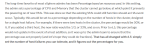
Also this articles clarifies the correct method of calculating the Percentage method based Admission control as well.
Screenshot extract from the article mentioned.
Windows 2016 License Calculator
Hi
With recent change of Licensing approach by Microsoft to transient from Processor based to Core based license has triggered various confusions for customers. But the HP has come up with a cool calculator that helps to calculate the exact licenses we need to procure per server and the total rights for virtual OSE’s. Further this tool gives an option to add the number of VM’s that we are planning to host and in turn the tool gives the additional license pack we need to order;
http://h17007.www1.hpe.com/us/en/enterprise/servers/licensing/index.aspx#.WT5dwcb-vIU
ESXi Host Disconnects from vCenter Server
Hi All
Recently we had an issue in one of customer environment where he is hosting 3 nodes ESXi Cluster on Nutanix. Suddenly one of the host was showing not responding and disconnected from the VCenter. But luckily there was no impact to the production VM ‘s hosted in that node since it was only the Management Network was having issue with it. After several hours of troubleshooting we decided to call the VMware Support and found out the issue is related to KB 2145611)
Below is the extract from the vmkernel.log
——————————————————————————-
2017-03-19T05:35:01.871Z cpu26:7190268)ALERT: hostd detected to be non-responsive
2017-03-19T06:00:01.988Z cpu2:7192142)ALERT: hostd detected to be non-responsive
2017-03-19T06:02:53.474Z cpu6:36416)StorageApdHandler: 1204: APD start for 0x4305932c3770 [8c9d039d-452d1170]
2017-03-19T06:02:53.474Z cpu6:36416)StorageApdHandler: 1204: APD start for 0x4305932c4fd0 [fa49f8b0-fa322ecd]
2017-03-19T06:02:59.369Z cpu18:32953)StorageApdHandler: 1292: APD bounce-exit for 0x4305932c4fd0 [fa49f8b0-fa322ecd]
2017-03-19T06:02:59.369Z cpu18:32953)StorageApdHandler: 1292: APD bounce-exit for 0x4305932c3770 [8c9d039d-452d1170]
2017-03-19T09:40:04.774Z cpu44:7213651)WARNING: LinuxFileDesc: 5637: Unrecoverable exec failure: Failure during exec while original state already lost
2017-03-19T09:40:06.784Z cpu24:7213652)WARNING: UserParam: 1301: could not change group to <host/vim/vimuser/terminal/ssh>: Admission check failed for memory resource
2017-03-19T09:40:06.784Z cpu24:7213652)WARNING: LinuxFileDesc: 5637: Unrecoverable exec failure: Failure during exec while original state already lost
2017-03-19T09:40:06.986Z cpu29:7213653)WARNING: UserParam: 1301: could not change group to <host/vim/vimuser/terminal/ssh>: Admission check failed for memory resource
2017-03-19T09:40:06.986Z cpu29:7213653)WARNING: LinuxFileDesc: 5637: Unrecoverable exec failure: Failure during exec while original state already lost
2017-03-19T09:41:39.969Z cpu16:37557)WARNING: LinuxThread: 340: Error cloning thread: -28 (bad0081)
2017-03-19T09:45:52.490Z cpu43:7214205)WARNING: User: 5366: Error in exec’d cartel setup: Failed to map section: Admission check failed for memory resource
2017-03-19T09:45:52.490Z cpu43:7214205)WARNING: LinuxFileDesc: 5637: Unrecoverable exec failure: Failure during exec while original state already lost
2017-03-19T09:46:06.930Z cpu30:7214223)WARNING: LinuxThread: 340: Error cloning thread: -28 (bad0081)
2017-03-19T09:46:07.236Z cpu41:7214225)WARNING: LinuxThread: 340: Error cloning thread: -28 (bad0081)
2017-03-19T09:46:46.417Z cpu22:7214286)WARNING: User: 5366: Error in exec’d cartel setup: Failed to map section: Admission check failed for memory resource
2017-03-19T09:46:46.417Z cpu22:7214286)WARNING: LinuxFileDesc: 5637: Unrecoverable exec failure: Failure during exec while original state already lost
2017-03-19T09:47:11.461Z cpu26:37558)WARNING: LinuxThread: 340: Error cloning thread: -28 (bad0081)
2017-03-19T09:49:19.688Z cpu5:7214435)WARNING: LinuxThread: 340: Error cloning thread: -28 (bad0081)
————————————————————————————-
The support engineer suggested that we could try it by clear the likewise cache(where the ESXI host the AD authentication related data) before applying the patch.
The commands he used are:(Take a Putty Session to the ESXi host impacted)
# /usr/lib/vmware/likewsie/lw-lsa ad-cache –delete all
The above command will produce an error (file not found) if there is no cache.
Good luck.
 Hope you like it..