Archive for August, 2021
How to check the AD Schema version
We all know , how to check the FFL & DFL version using the AD Snap-ins.However , if you want to check the AD schema version , you need to run regsvr32 schmmgmt.dll to active the MMC snap-in to get the required details.
Most of the time this process will fail and need additional troubleshooting steps. Instead of that , you can use the below PowerShell command to easily get the AD schema version. In the meantime , you could still use the ADSI Edit as well.
Get-ADObject (Get-ADRootDSE).schemaNamingContext -Property objectVersion
Output of the above command will give you a value for the ObjectVersion. This value need to be compared with below to obtain the correct schema version.

Source: https://support.globalsign.com/aeg/aeg-how-check-active-directory-schema-version
How to use KMS based activation for Windows images
Hi All
In our Hosting environment , we had to deploy large number of Windows Servers. We need to ensure that the Windows images are remain active within our datacenters only. As we cannot use MAK based activation. Because , if the customer moves out from us the licenses should be not active . In other words , it is customer responsibility to reactivate the Windows in his new environment.
So we came up with the idea of KMS based activation using VMware Templates and this is how we did it.
- Install the KMS Service on a Windows 2019 and activate it with the KMS Key.
( I am not writing the steps here .Since a simple Google search result will yield lot’s how-to articles on KMS installation.) - Created a Windows 2019 VM.
- Activated the Windows 2019 with the GVLK. You can refer the below URL for the GVLK keys.
https://docs.microsoft.com/en-us/windows-server/get-started/kmsclientkeys - Ran the Sysprep and converted it to a template.
- Thereafter , we created a custom specification file to perform the KMS activation on Windows image. All these settings are mandatory .Otherwise , the KMS commands will fail to run.
+ In the Windows License Page , clear all the settings.

+ In the Administrator Password and set a Password ,
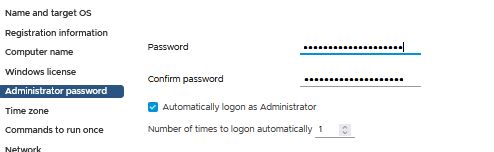
+ In the Commands to run once Page, enter the below commands
cscript c:\windows\system32\slmgr.vbs /skms “kms server ip”:1688
cscript c:\windows\system32\slmgr.vbs /ato

That’s it. Now you can go ahead and deploy the Windows images and get it activated by KMS.
Further reading:
1)Use the below command on your Windows images to verify the CMID(Client Machine ID is not duplicated).
Get-WmiObject -class SoftwareLicensingService | Select-object ClientMachineID
Duplicated CMID will prevent VM’s from getting activated.
2) On the KMS client you can review the below Registry key to verify the correct KMS settings have been applied.
HKLM/SOFTWARE/MICROSOFT/WINDOWSNT/CURRENTVERSION/SOFTWAREPROTECTIONPLATFORM/
–KeyManagementServiceName
–KeyManagementServicePort
3) Use the below commands on the KMS Server & Clients to verify the Windows Activation.
slmgr /dlv
slmgr /dli
 Hope you like it..